

Meet Instincts
Find your market, connect your wallet, and understand where your funds go before your first trade.
Your markets, together
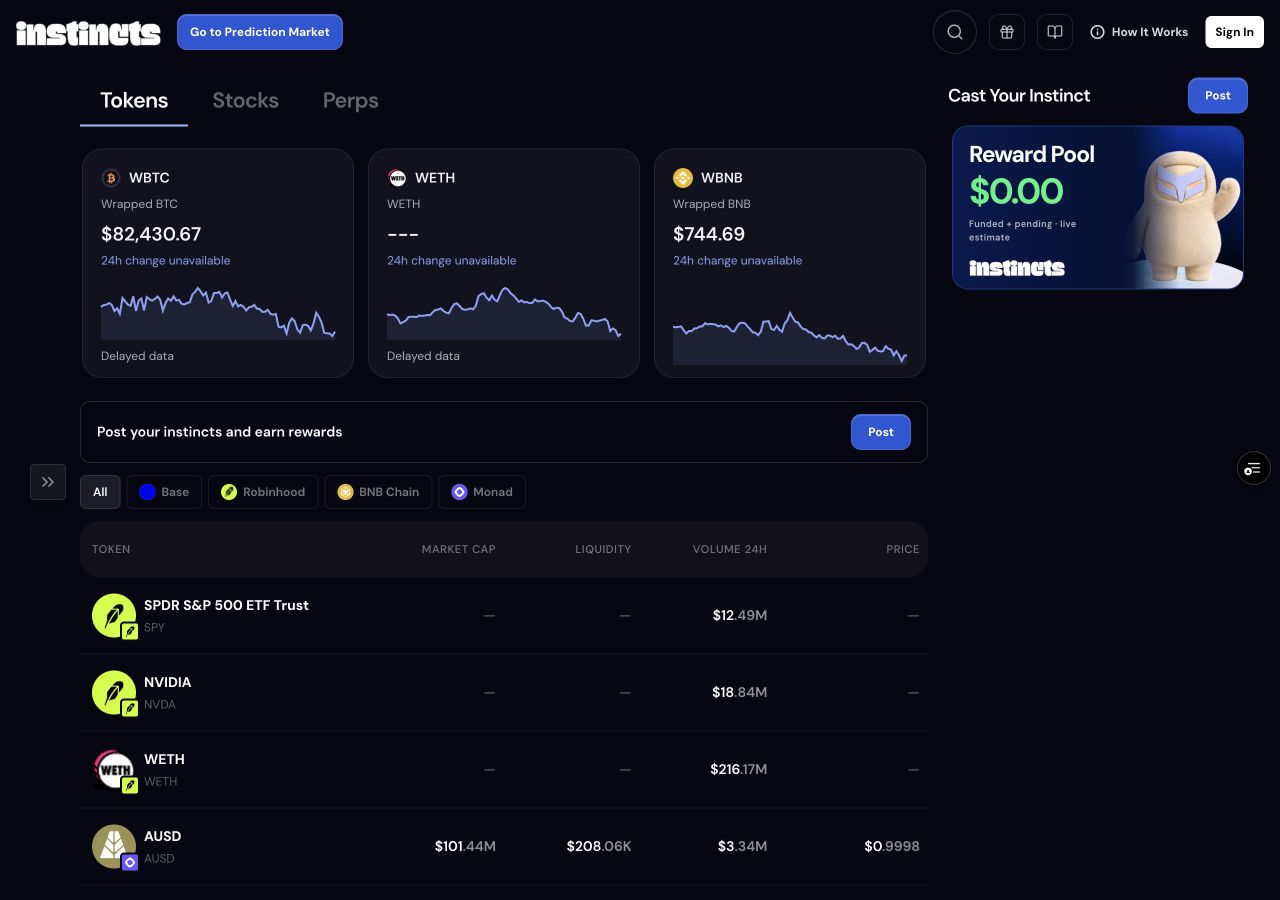
Tokens, Stocks, and Perps share the same workspace. Each market has its own chart, details, and trading controls.
Connect your wallet
Use the wallet connected to your Instincts account. The selected market determines the payment asset, network, and approvals.
Keep track
Your profile brings holdings and Perps activity together. Pending transfers and open orders are different from completed trades.
Find the market you want to trade
Use Tokens, Stocks, or Perps to switch between markets. Featured cards open individual assets; the list underneath lets you compare them. On Tokens, filter by Base, Robinhood, BNB Chain, or Monad. On Perps, filter by category or search for a market.
Open an asset to see its chart and trading panel. On desktop the panel sits beside the chart. On mobile, Buy / Sell or Long / Short opens a dedicated trade screen. Prices and charts help you explore; the current trade quote determines execution.
Connect the wallet you will use
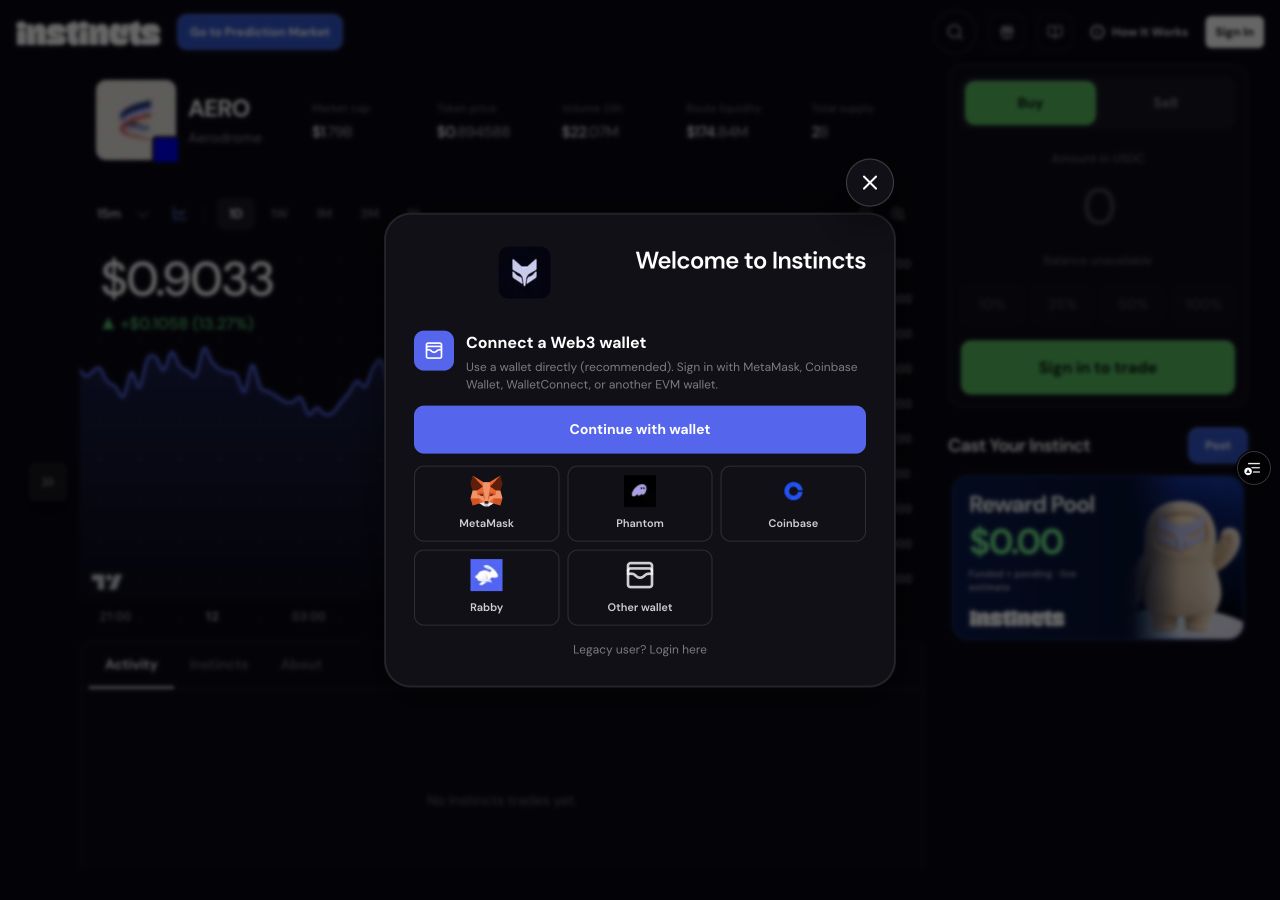
Select Sign In and choose your wallet provider. The current sign-in screen offers MetaMask, Phantom, Coinbase, Rabby, and Other wallet. Existing users can also use the legacy login entry. Connecting a provider does not make every network or asset in that wallet a supported payment option.
Keep the selected wallet consistent with your Instincts account. A wallet approval or signature must come from the owner expected by the app. If you change accounts in your wallet, reconnect the intended account before continuing, especially when enabling Perps.
Add funds to the right balance
For a connected external wallet, fund the payment asset on the network required by your trade and keep native currency available for network fees. The same token symbol on two networks does not represent the same spendable balance. Check the asset and network shown by the trading flow.
For an Instincts wallet that offers Deposit, choose From network and Asset, then use the generated deposit address or QR code for that exact combination. This deposit route delivers USDC on Base to your Instincts wallet. Changing the network or asset creates a different route; use the address currently displayed.
Perps uses a separate pUSD collateral balance. Adding USDC to your main wallet does not automatically credit Perps. Use Wallet asset in the Perps ticket to fund it from a supported source, or use existing credited Perps balance.
Follow holdings and trade status
Open your profile to follow your holdings. In its Perps view, Positions shows current exposure, Open orders shows orders still resting at the venue, and Fills shows executions and their fees. These views update automatically as activity is confirmed, on desktop and mobile.
You can review and confirm a position close or cancel an open Perps order from your own profile. An order being accepted is not proof that it has filled. A transfer being confirmed on its source network is not proof that its destination balance has been credited.
If a balance has not arrived
Check the network, asset, recipient, and transaction status for the original transfer. For Perps, distinguish a bridge payment, pUSD arriving in the funding wallet, and credit to the trading account. Leave a pending request to reconcile before making another payment. Where the app offers status checks or recovery, continue the original request instead of starting it again.