

Trading perpetuals
Enable Perps, fund pUSD collateral, choose your direction and leverage, and manage positions from the market or your profile.
Choose your direction
Long and Short create derivative exposure. Market and Limit choose how the order executes; they do not buy the underlying token or stock.
Set leverage
Choose leverage up to the market’s limit. Open applies the chosen cross-margin settings automatically before quoting and submitting.
Fund and review
Use credited Perps balance or fund with a supported Wallet asset. A new deposit must settle at least 10 pUSD; order minimums apply to notional.
Read the Perps workspace
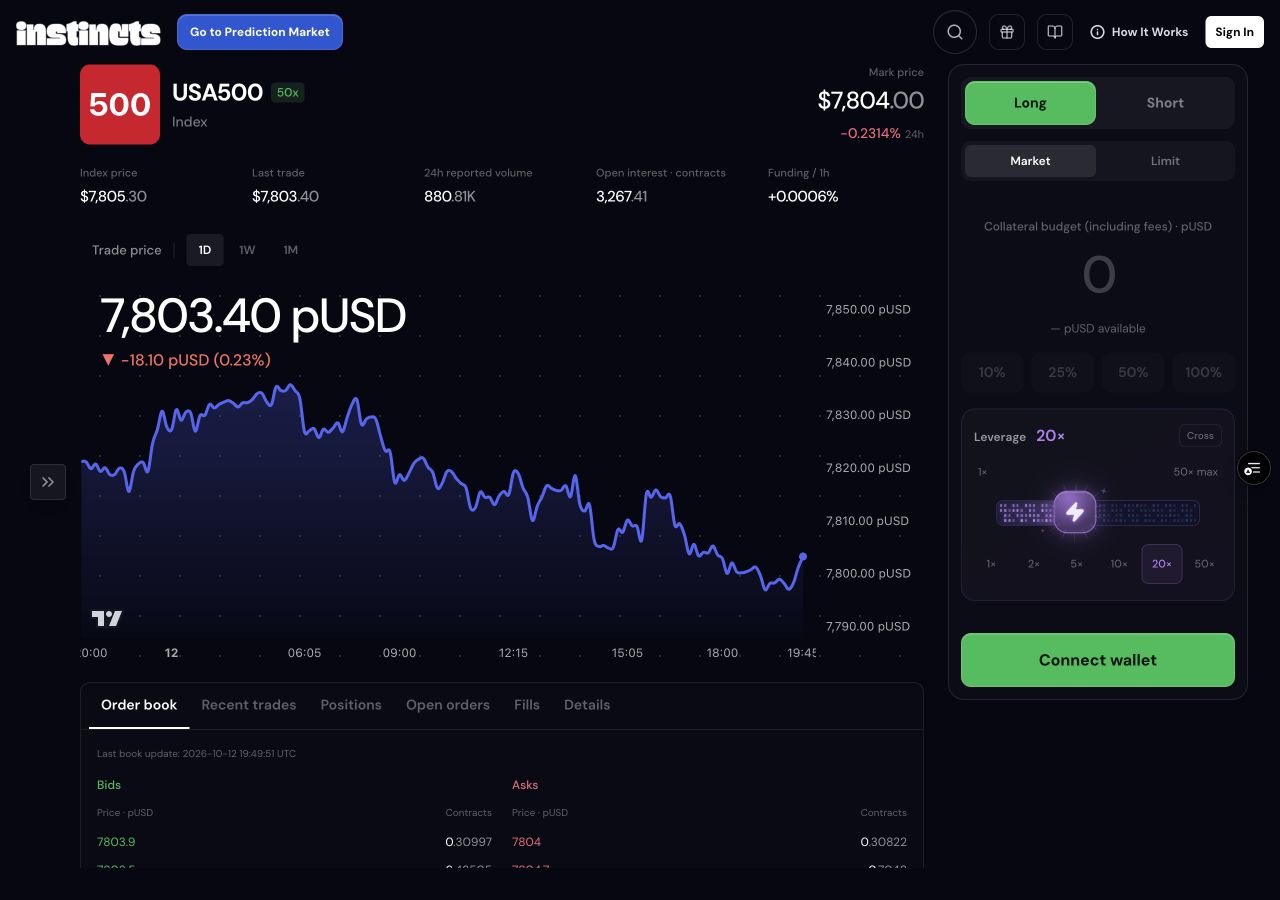
Each market shows mark price, index price, last trade, open interest in contracts, and the reported funding rate with its interval. These are different measures: the last trade is a completed execution, while mark and index are venue market references. The chart displays trade-price history.
Use Order book for bids and asks, Recent trades for market executions, and Details for instrument constraints. Reported volume is shown in the venue’s raw units where those units are unverified; do not read that figure as confirmed dollar volume. The leverage badge beside the market name is its maximum, not your selected leverage.
Enable Perps with your account’s wallet
Connect the external owner wallet linked to your Instincts account, then select Enable Perps when shown. Setup creates or links a funding wallet and asks for the authorizations needed by the Perps account. If the panel requests a displayed Instincts fee authorization, review that authorization before proceeding.
Use the same account in your wallet throughout setup. Funding wallet deploying, authorization pending, or a reconnect state must finish before an opening order can proceed. The app checks account ownership, current authorization, and fresh venue data rather than accepting a signature from another wallet account.
Fund your Perps balance
Perps balance is already credited pUSD margin. Wallet asset starts a separate top-up from a supported source network. The panel looks for funded supported assets and shows up to five quick choices, with network and asset selectors for other available options. It does not accept every asset on every chain.
Choose the source asset and enter Wallet top-up amount. Check the funding estimate: source amount and network, estimated receipt, quoted minimum, bridge fees, and gas. Approve the source-network payment in your wallet. After pUSD arrives in the Polygon funding wallet, complete the collateral authorization to credit it to Perps.
The app requests required network changes during the wallet flow. Approve those prompts when your wallet requires them, and keep source-network gas available. Bridge settlement and Perps credit are separate stages; only credited margin is available for an opening order. The injected wallet flow currently supports the offered EVM assets, not Solana funding.
Deposit minimum and order minimum are different
A new Perps deposit must settle at least 10 actual pUSD after bridge fees before it can be credited. The source asset can also have its own bridge minimum. Wallet top-up amount is therefore different from the collateral budget for a trade. A small trade can use margin you have already credited.
The opening order minimum is 10 pUSD of notional exposure, subject to the instrument’s quantity rules. For illustration, 10 pUSD notional at 20× requires about 0.50 pUSD margin plus fees. A 2 pUSD collateral budget includes fees, so exposure is less than 40 pUSD at 20×. The executable quote determines the actual quantity, margin, and fees.
If less than the required amount arrives, the funds remain in the funding wallet rather than becoming tradable margin. Use the supported recovery controls; paying again does not resolve the status of the original transfer.
Choose leverage and open a position
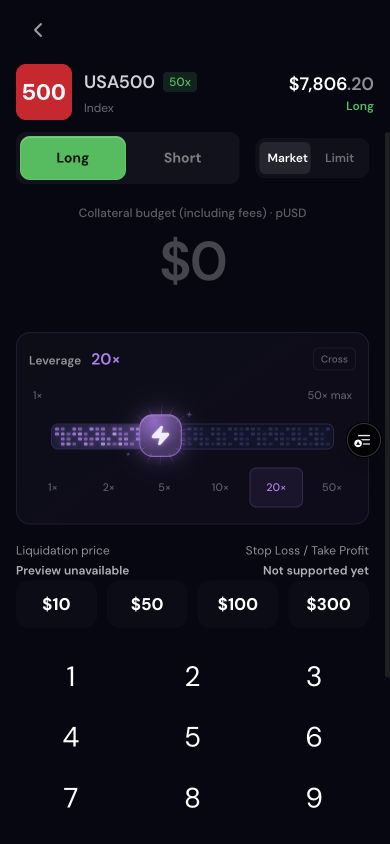
Choose Long or Short, select Market or Limit, and enter a collateral budget that includes opening fees. A Limit order also needs a limit price. Move the leverage slider or choose a preset within the market’s maximum. Instincts currently opens cross-margin positions; an isolated-only or close-only market cannot accept a new opening through this ticket.
Select Open long / Open short on desktop, or use the slide control in the mobile trade screen. The app verifies available margin, applies and confirms the selected leverage if needed, requests a fresh protected quote, and submits the order. You do not need a separate Apply margin step. A resting or partially filled limit order remains visible in Open orders.
Higher leverage increases exposure and liquidation risk. Cross margin shares collateral across positions. The mobile ticket currently labels stop-loss and take-profit as not supported; those controls do not place protective orders.
Manage positions, orders, and fills
Positions, Open orders, and Fills sit beside the market-data tabs and also appear in your own profile’s Perps view. Positions shows signed size, entry price, unrealized P&L, and liquidation price when provided. Fills records completed quantities, execution prices, and venue and Instincts fees.
Use Review close on a market or Close position in your profile to get a reduce-only close quote, then Confirm close. Use Cancel order to cancel an order that is still open. Cancellation does not undo quantities already filled. These views reconcile and animate updates after trades, closes, and cancellations without a page refresh; delayed data is identified when present.
Withdraw or resume interrupted funding
Use the Perps funds page for available-margin withdrawals and funding recovery. Closing a position does not automatically withdraw collateral. The venue’s account-wide withdrawable amount determines what can leave while other positions and orders remain open.
If a payment was already sent, check its existing request and source transaction hash rather than sending again. pUSD in the funding wallet is separate from credited venue margin; the recovery flow can use a verified funding-wallet source where supported. Pending and unknown requests continue checking their original result.